The Director Output
Rendering shots, the chain rule, and how to re-render without leaving your film out of sync.
This is where your story becomes video. It is also where the money is, so this guide spends most of its time on the two things that decide whether you spend it well: how shots depend on each other, and what that means when you re-render.
Rendering needs a paid plan
On the free plan you can write, analyse, review and export your prompts — everything up to this point. Rendering video and assembling a final cut require a paid plan.
The render console
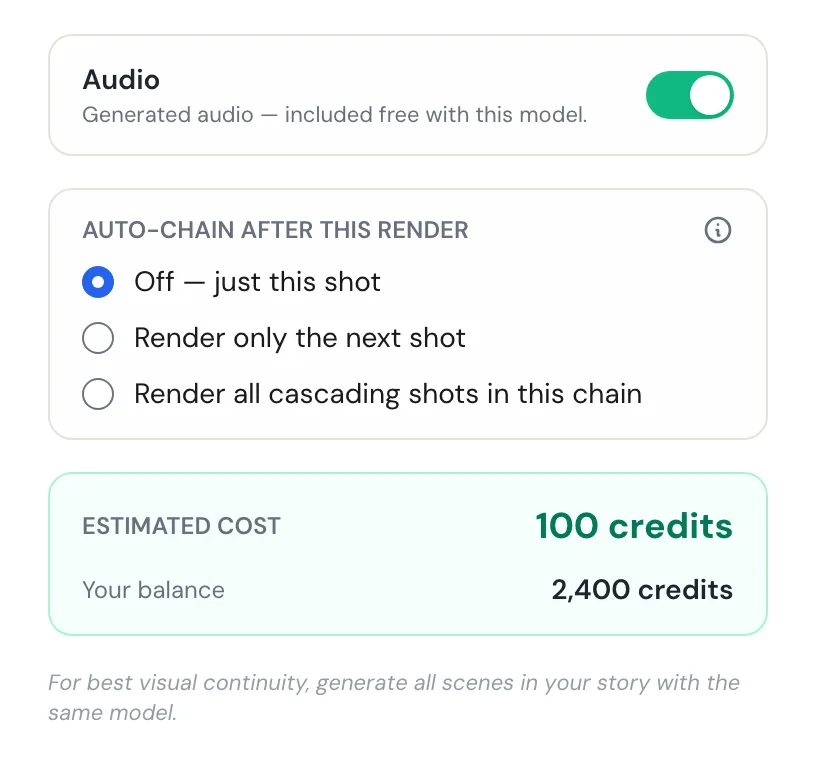
Every render starts the same way: pick a shot, open the console, and confirm. The console shows you the model and output quality, an audio switch where the model supports one, the estimated cost, and your current balance — before you commit to anything.
Choosing the model is its own subject: Choosing Your Video Model. The short version is to pick one and use it for the whole film.
If a shot has prompt problems that would waste the render, the console blocks and tells you what to fix rather than letting you spend into a known-bad dispatch.
Chains: how shots continue from each other
This is the concept the whole page turns on.
When a shot continues the same moment as the shot before it, StoryDirector renders it by taking the previous shot's final frame and using it as the starting point. That is what makes a scene feel continuous instead of like a series of unrelated clips.
A chain is a run of shots linked that way. It ends at the next shot that starts a new scene or setting — a shot generated from text rather than from a previous frame. That shot begins a fresh sequence, and it is not part of the chain before it.
Your three choices when you render a chained shot
If the shot you are rendering has shots that follow from it, the console offers:
- Off — just this shot Render only what you selected. The shots that follow stay as they are.
- Render only the next shot Render this shot, then automatically render the one immediately following it from its new final frame.
- Render all cascading shots in this chain Keep going through every following shot that builds on the previous frame, stopping when the chain reaches a shot that begins a new scene or setting.
This setting resets to Off every time you open the console. Cascading spends real credits across several shots, so it is asked fresh each time rather than remembered from last time.
A chain is priced and held up front
When you confirm a cascade, the credits for the whole chain are reserved before the first shot dispatches. The number you agreed to is the number you pay — and if you cannot afford the whole chain, the console tells you before anything runs rather than stopping halfway.
One limitation worth knowing: a chain that branches — where more than one shot continues from the same shot — cannot be auto-cascaded. Render those shots individually.
Re-rendering: the rule that saves the most credits
Here is the situation that catches everyone once.
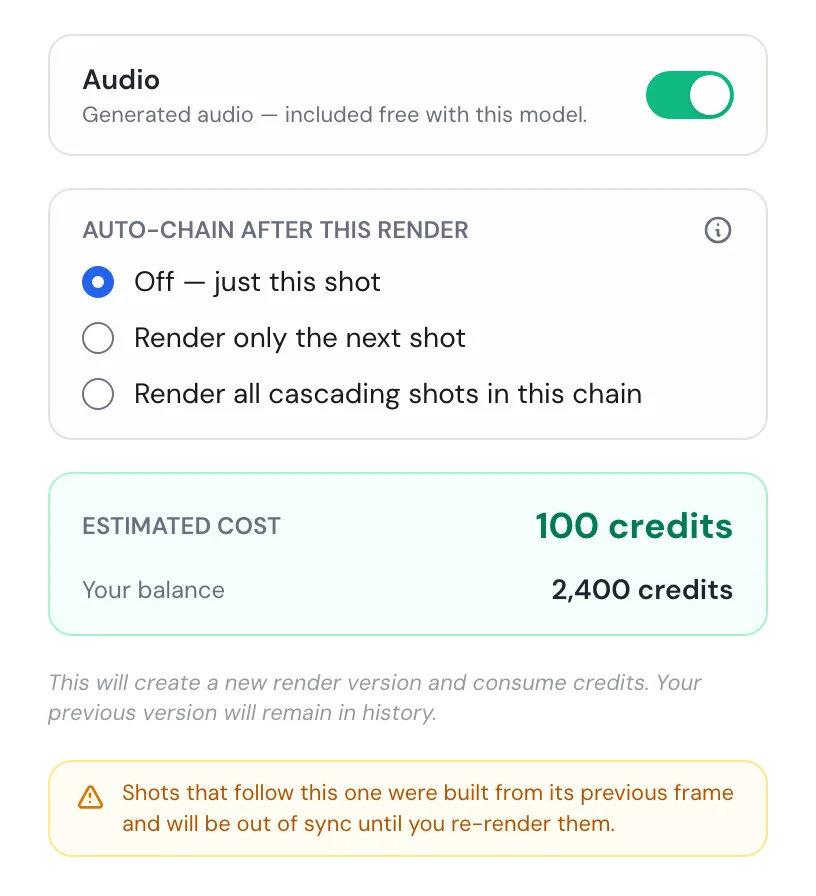
You render a scene. Shot 4 is not right, so you re-render it and get a better version. But shots 5, 6 and 7 were built from shot 4's old final frame — the one that no longer exists in your film. They now continue from something the audience never sees. The console warns you at the moment you do it: the shots that follow this one will be out of sync until you re-render them.
So re-render downstream, in order
- Fix the earliest broken shot first Work upstream to downstream. Re-rendering shot 6 before shot 4 means re-rendering shot 6 again afterwards.
- Re-render it with a cascade Choose "Render all cascading shots in this chain" so every shot built on it is rebuilt from the new frame in one action, at a price you agreed to up front.
- Let the chain stop where it stops The cascade ends at the next shot that starts a new scene. That shot never depended on your frame, so it does not need re-rendering.
Do
- Re-render from the earliest problem shot forward.
- Use the cascade so the whole affected run is rebuilt consistently.
- Re-render with the same model you used originally.
Don't
- Re-render a single mid-chain shot and assume the scene is fixed.
- Re-render shots in reverse order — you will pay for the later ones twice.
- Ignore the out-of-sync warning; it is telling you about real broken continuity.
Generate All
Generate All Shots renders your entire story, and it ignores the chain setting entirely — that control is about cascading from one shot, and this is about all of them. It is the right tool for a first full pass, and the wrong tool for fixing one bad shot.
Shots that are waiting
Some shots cannot start until the shot they continue from has finished and its final frame has been extracted. These show as waiting, and they dispatch automatically when their predecessor is ready. You do not need to come back and start them.
The queue
Everything in flight is visible in one place. You can cancel an individual queued render, cancel a shot that is waiting on a predecessor, cancel everything queued at once, and clear a render that has got stuck.
Dialogue and audio
Whether your dialogue is actually voiced depends entirely on the model you render with — some include audio, some charge for it and default it off, one is always on, and some are silent. The audio pill on each model row tells you which, and turning audio on changes the price you see.
The spoken-time estimate you saw in the wizard came from your quoted dialogue — Writing a Story the Engine Can Direct covers how that is counted.
A sane rendering order
- Render one shot alone Pick a representative shot, choose your model and quality, and render just that. Judge it properly before committing the film.
- Adjust upstream if it is wrong A bad set, a wrong face or a weak prompt is cheaper to fix on the Director Review than to fight shot by shot.
- Render scene by scene, cascading within each You get watchable scenes early and you find problems while they are still cheap.
- Then assemble Once every shot has rendered, the final cut is one action.
Next
Editing & Your Final Cut — assembling every shot into one film, versions, and exports.
Ready to direct one of your own?