Editing & Your Final Cut
The editor read your story. Then: assembling every shot into one cut, versions, and exports.
Two things carry the word "edit" in StoryDirector, and they sit at opposite ends of the pipeline. One happens before anything is made: an editor reads your story and offers changes. The other happens after everything is made: your rendered shots are assembled into a single film.
This guide covers both, in that order.
The Editor Review
After you write your story, an editor reads the whole thing and returns a cut — the same story, edited for the things that trip up a render. You then decide, change by change, what to keep.
Every change is shown to you individually
You do not get a wall of new text and a yes/no. Each change is presented on its own card with what it changed, why, and what you would lose by reverting it. You move through them one at a time.
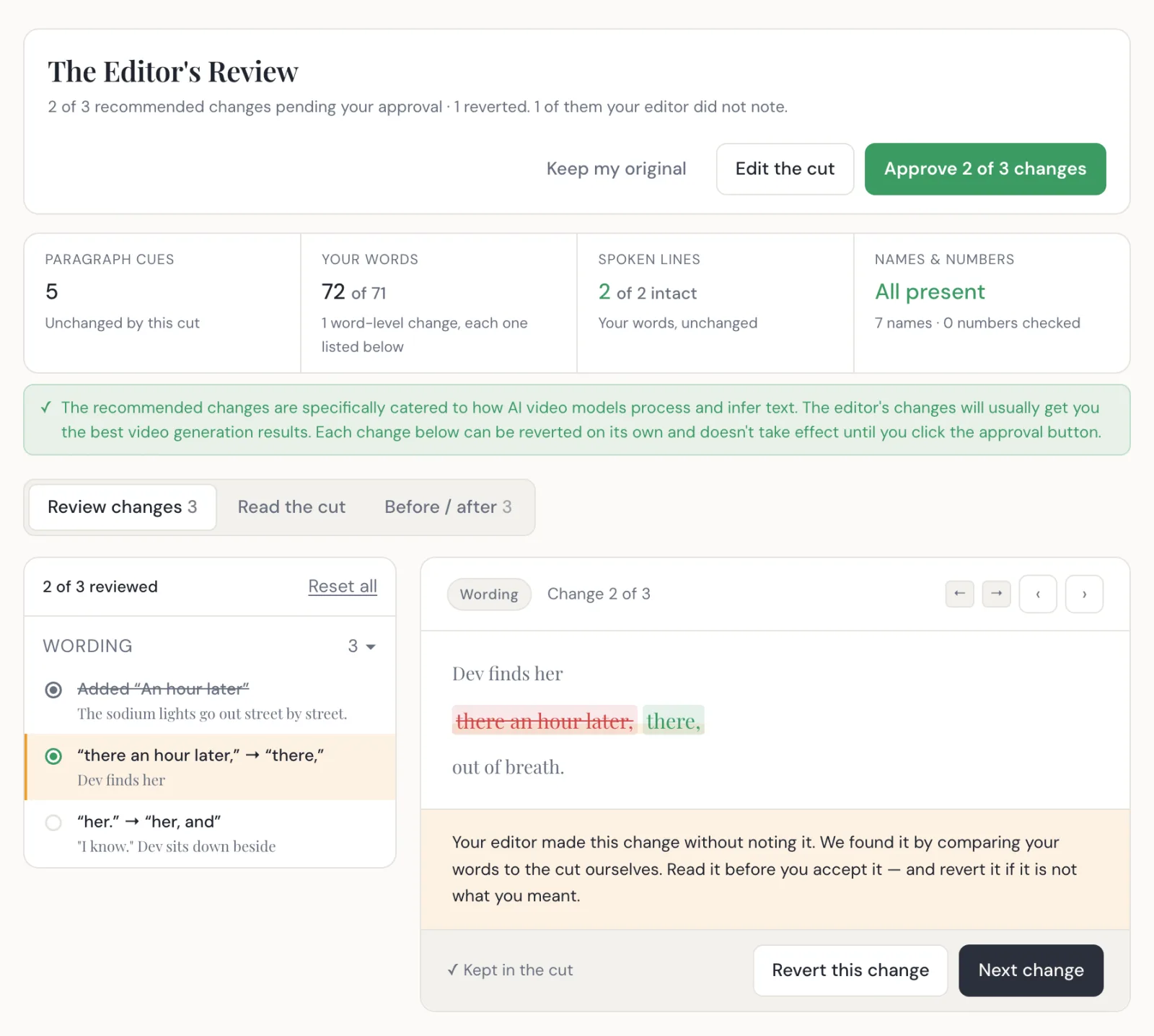
Each card has two buttons: Revert this change and Keep this change. Reverting is not all-or-nothing — you can keep nine changes and revert the tenth, and the approve button counts what you have actually kept ("Approve 9 of 10 changes"). Revert everything and it honestly says so instead: "Use my original — all reverted".
Changes the editor did not explain
This is the part worth knowing about, because it is unusual and it is on your side.
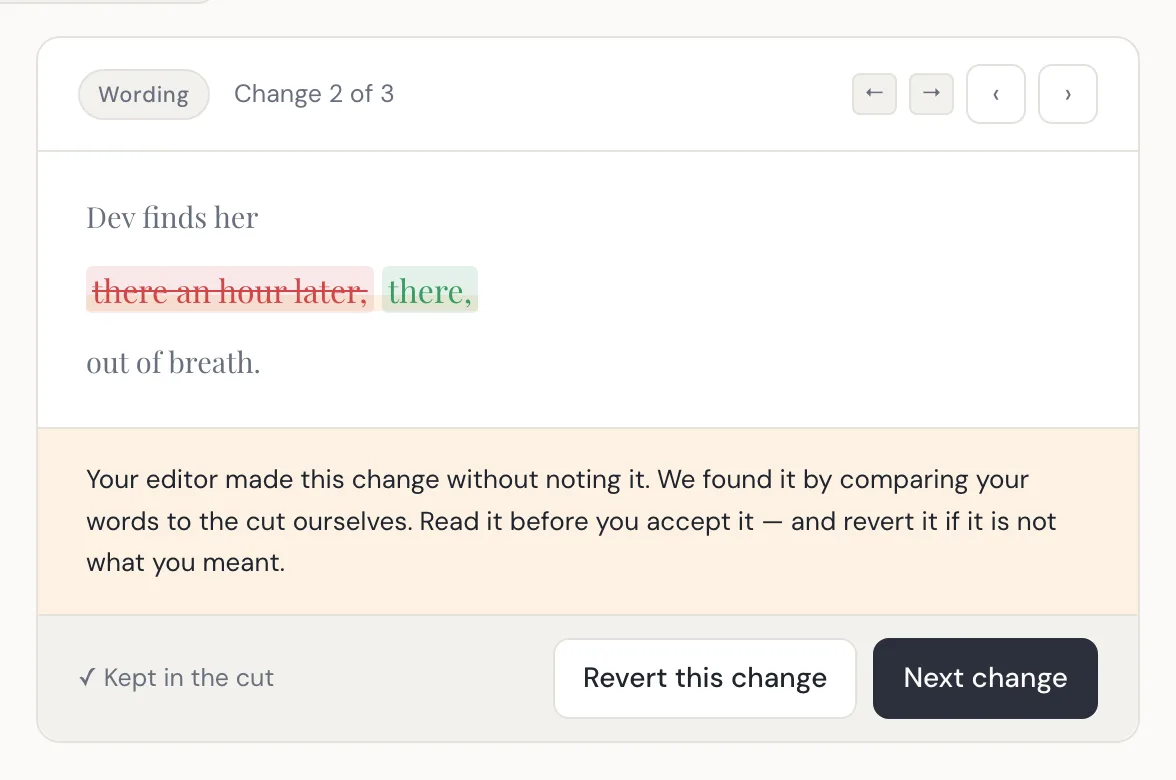
StoryDirector does not take the editor's word for what the editor did. It compares your original words against the returned cut itself, and anything the editor changed without noting it gets flagged in plain language: "Your editor made this change without noting it. We found it by comparing your words to the cut ourselves. Read it before you accept it."
Those changes are located and individually revertible just like the disclosed ones. Nothing is altered silently.
Your three exits
- Approve the changes you kept The cut, minus anything you reverted, becomes your story.
- Edit the cut Opens the whole thing as editable text. As the screen says: this is your story now — change anything you like, and what you save is what gets made.
- Keep my original Decline the cut entirely. Your story goes forward exactly as you wrote it.
What approving actually writes
Whatever you end up with — the cut, your edited version, or your original — is written to the same story field the engine has always compiled. The editor does not create a new kind of input, and your original text is kept either way.
Two outcomes that are not failures
- "Nothing needed changing." The editor read the story and found nothing that would trip up the render. This is a real result, not an empty screen — well-structured stories get it.
- "We couldn't reach your editor." Nothing has been changed, and your story goes to the screenwriter exactly as you wrote it. You can continue with your original or try again. The pipeline does not depend on the editor having run.
Assembling your final cut
Once your shots are rendered, StoryDirector stitches them into one continuous video.
Every shot has to be rendered first
The final cut is an assembly, not a generation — it needs a finished render for every shot in the story. If any are missing, it tells you which.
Edited shots must be re-rendered
If you edited a shot after rendering it, its existing video no longer matches it. The final cut refuses to assemble a stale shot and names the ones you need to regenerate. This is the same principle as the chain rule in The Director Output: the assembly is only as current as the shots under it.
It will not rebuild an identical cut
If nothing has changed since your last final cut, StoryDirector says so rather than spending time producing a byte-identical file.
Final cut needs a paid plan
The same plan gate as rendering shots. Directing, reviewing and exporting your prompts are available on the free plan.
Versions
Each assembled cut is kept as a version. You can play any of them and switch which one your story presents, so improving a scene and re-assembling does not throw away the cut you already had.
Uploading your own cut
If you take your shots into another editor and finish elsewhere, you can upload the finished video back to the story — and remove it again. StoryDirector does not insist on being the last tool in the chain.
Exports
Three exports, for three different reasons:
- The storyboard — your shot list as text.
- All assets — a zip containing the storyboard and your generated images.
- The video prompts — the actual compiled prompts for every shot.
The prompt export is the interesting one, and it is available on the free plan. It is the whole directorial output of the engine in a form you can take anywhere — useful if you want to render elsewhere, or simply to see what StoryDirector actually asked the model for.
Sharing
A finished story can be shared publicly, and sharing can be turned off again. Published stories are what populate the Creator Showcase.
You have the whole pipeline
That is the full path: three creative choices, a story, an editor, a review, a render, a cut. If you want the map again in one page, it is The Complete Workflow.
Ready to direct one of your own?